VBA Course: MsgBox and InputBox
MsgBox
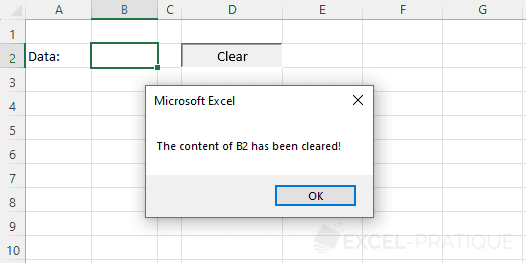
So far, we have used the MsgBox dialog box only to display information:
Sub clearB2()

    Range("B2").ClearContents
    MsgBox "The content of B2 has been cleared!"

End Sub
In this case, MsgBox is used with only one argument.
Preview of the result of this code:
Now, we will create a dialog box that asks for confirmation before executing the instructions.
Here are the 3 arguments we will provide:
MsgBox([TEXT], [BUTTONS], [TITLE])- Text: text of the dialog box
- Buttons: choice of buttons (Yes, No, Cancel, etc.) + other options
- Title: title of the dialog box
Sub clearB2()

    If MsgBox("Are you sure you want to delete the contents of B2?", vbYesNo, "Confirmation") = vbYes Then
        Range("B2").ClearContents
        MsgBox "The content of B2 has been cleared!"
    End If

End Sub
Preview:
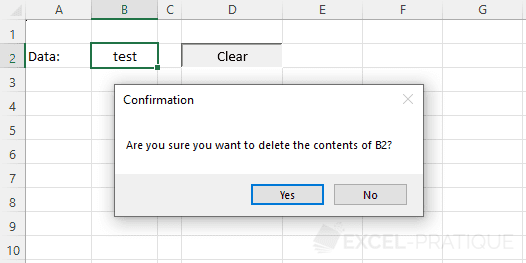
vbYesNo indicates that the dialog box has "Yes" and "No" buttons, and vbYes corresponds to the "Yes" button:
If MsgBox("Text", vbYesNo, "Title") = vbYes Then 'If the Yes button is clickedDifferent Options for the Second Argument of MsgBox
| Constant | Value | Description |
|---|---|---|
| vbOKOnly | 0 |
|
| vbOKCancel | 1 |
|
| vbAbortRetryIgnore | 2 |
|
| vbYesNoCancel | 3 |
|
| vbYesNo | 4 |
|
| vbRetryCancel | 5 |
|
| vbCritical | 16 |
|
| vbQuestion | 32 |
|
| vbExclamation | 48 |
|
| vbInformation | 64 |
|
| vbDefaultButton1 | 0 | Default Button: Button 1 |
| vbDefaultButton2 | 256 | Default Button: Button 2 |
| vbDefaultButton3 | 512 | Default Button: Button 3 |
| vbApplicationModal | 0 | Forces the user to respond before continuing with Excel |
| vbSystemModal | 4096 | Forces the user to respond before continuing with other applications (dialog box in the foreground) |


Values at 0 are the defaults.
The second argument of MsgBox can take multiple values from this table.
For example, for a dialog box with "Yes, No, Cancel" + exclamation icon + default button 2:
MsgBox("Text", vbYesNoCancel + vbExclamation + vbDefaultButton2, "Title")Preview:

The constants can be replaced with their respective values. These 3 lines display an identical dialog box:
MsgBox("Text", vbYesNoCancel + vbExclamation + vbDefaultButton2, "Title")
MsgBox("Text", 3 + 48 + 256, "Title")
MsgBox("Text", 307, "Title")
Values Returned by MsgBox
| Constant | Value | Button Corresponding to the Value |
|---|---|---|
| vbOK | 1 |
|
| vbCancel | 2 |
|
| vbAbort | 3 |
|
| vbRetry | 4 |
|
| vbIgnore | 5 |
|
| vbYes | 6 |
|
| vbNo | 7 |
|
Here's an example of a MsgBox that appears in a loop until the "Yes" button is clicked:
Sub humor()

    Do
        If MsgBox("Do you like the Excel-Pratique website?", 36, "Survey") = vbYes Then
            Exit Do 'Exit the loop if the response is Yes
        End If
    Loop While True 'Infinite loop

    MsgBox ";-)"

End Sub
New Line in MsgBox
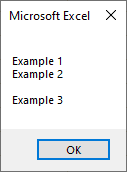
To create a new line, you can insert the corresponding line break character using the Chr function, for example:
MsgBox "Example 1" & Chr(10) & "Example 2" & Chr(10) & Chr(10) & "Example 3"Preview:
InputBox
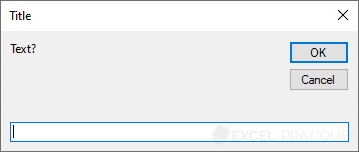
The InputBox function asks the user to enter a value in a dialog box. Here's an example:
Sub example()

    Dim result As String

    result = InputBox("Text?", "Title") 'The variable receives the value entered in the InputBox

    If result <> "" Then 'If the value is not empty, display the result
        MsgBox result
    End If

End Sub
Preview:
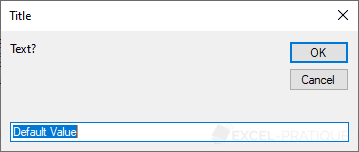
You can also provide a default value as the third argument:
InputBox("Text?", "Title", "Default Value")Preview: